

Prerequisites
Install these programs in order before continuing.1
Install Node.js
Download and install Node.js from the official site.Download Node.js
2
Install Claude Code
Paste this in your terminal:
3
Install VS Code
Download and install VS Code.Download VS Code
4
Add the code command to your PATH
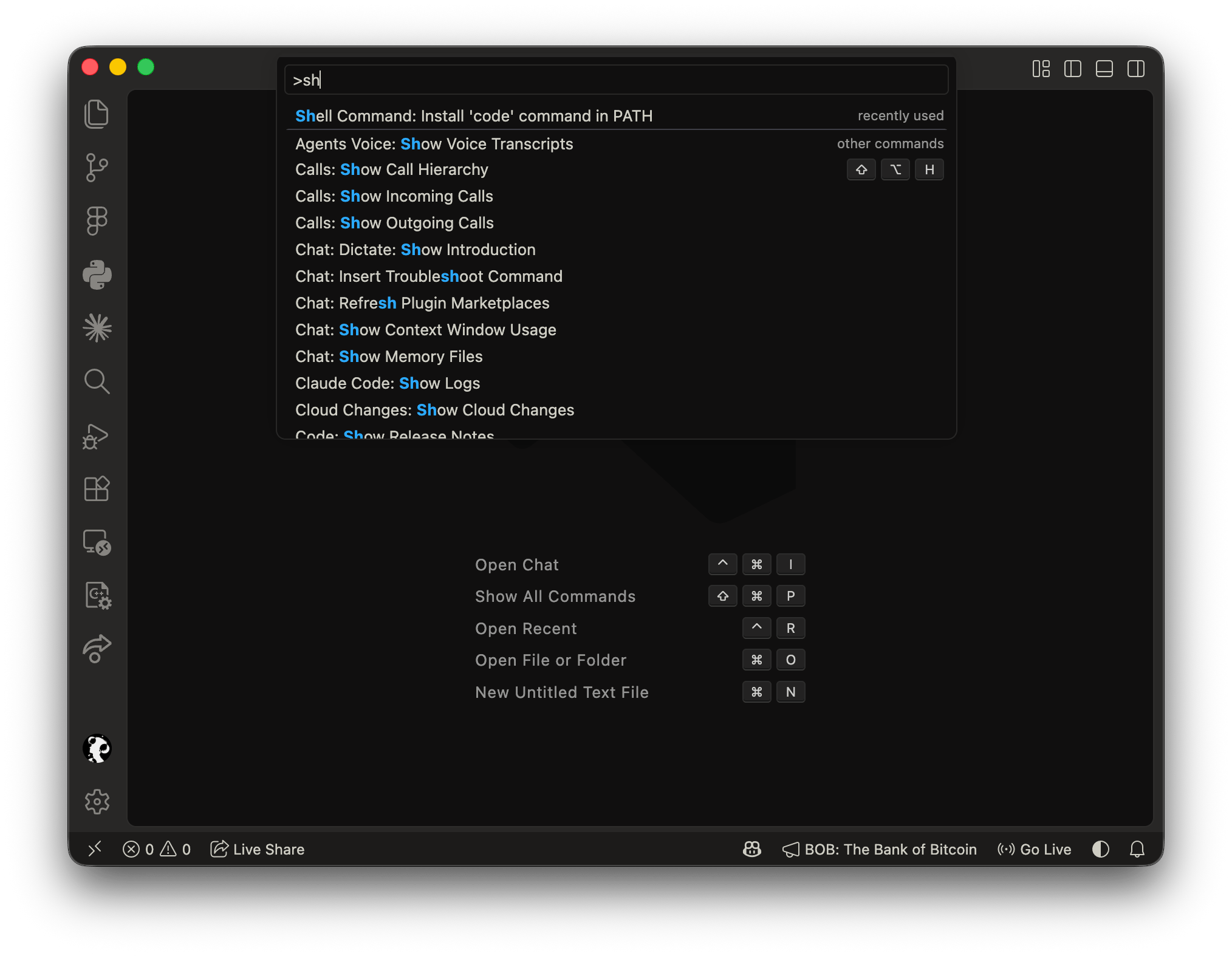
code command.- Open VS Code.
- Press Cmd / Ctrl + Shift + P to open the Command Palette.
- Run
> Shell Command: Install 'code' command in PATH.
code command is available.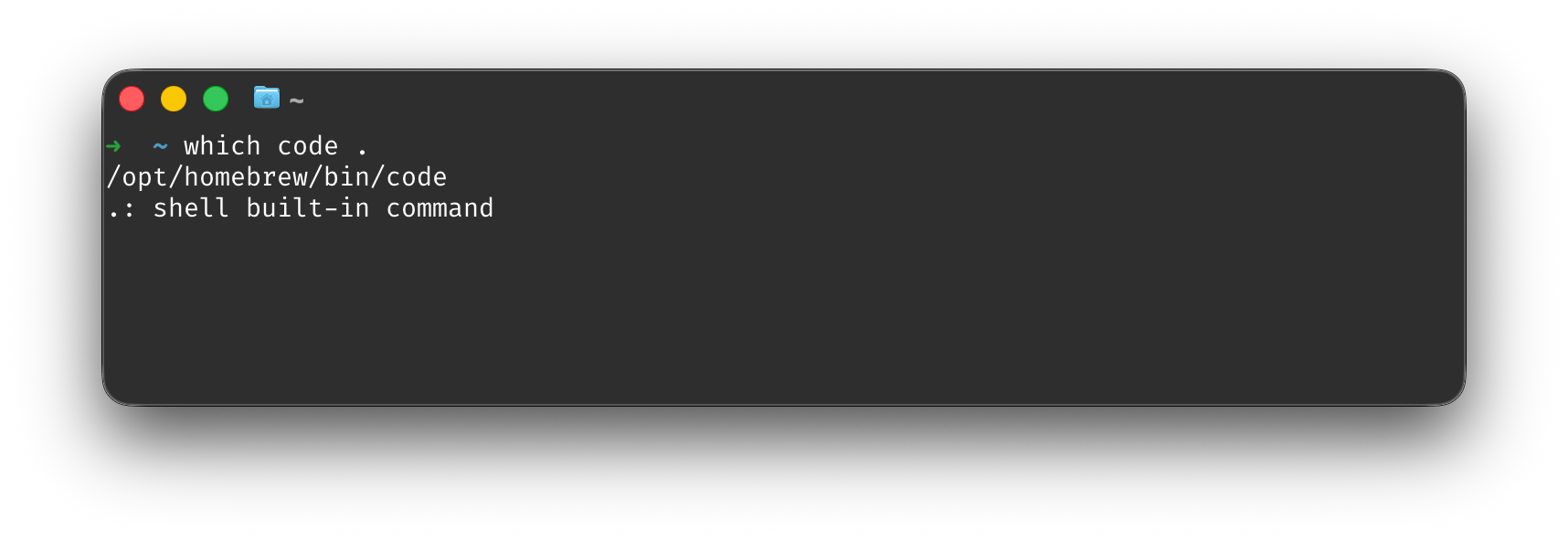
5
Install the Claude Code extension for VS Code
Install the extension from the Marketplace.Install Claude Code extension
Set up Kili
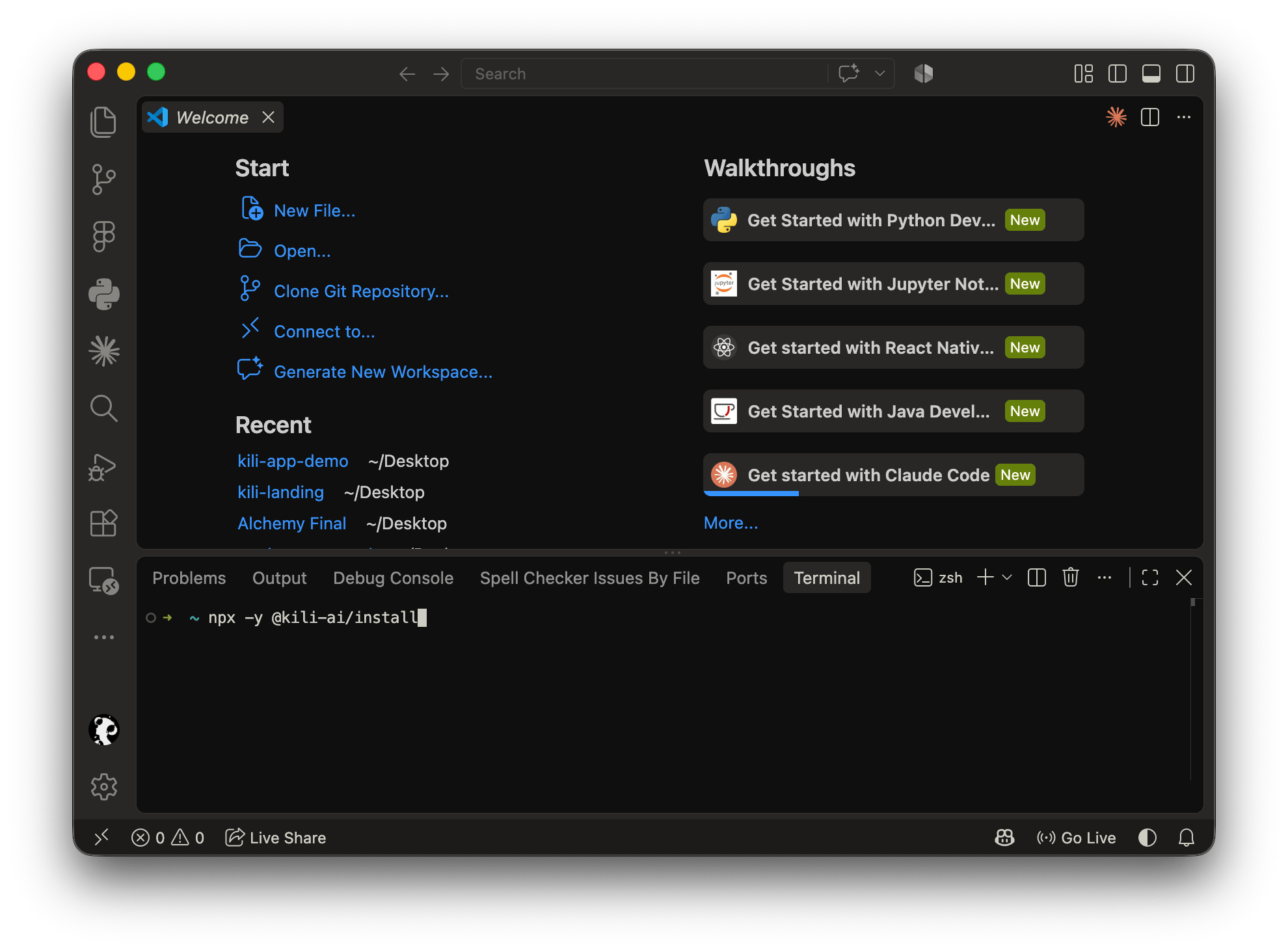
You can run the install script from either the VS Code terminal or your system terminal (with Claude Code installed). Both work the same way.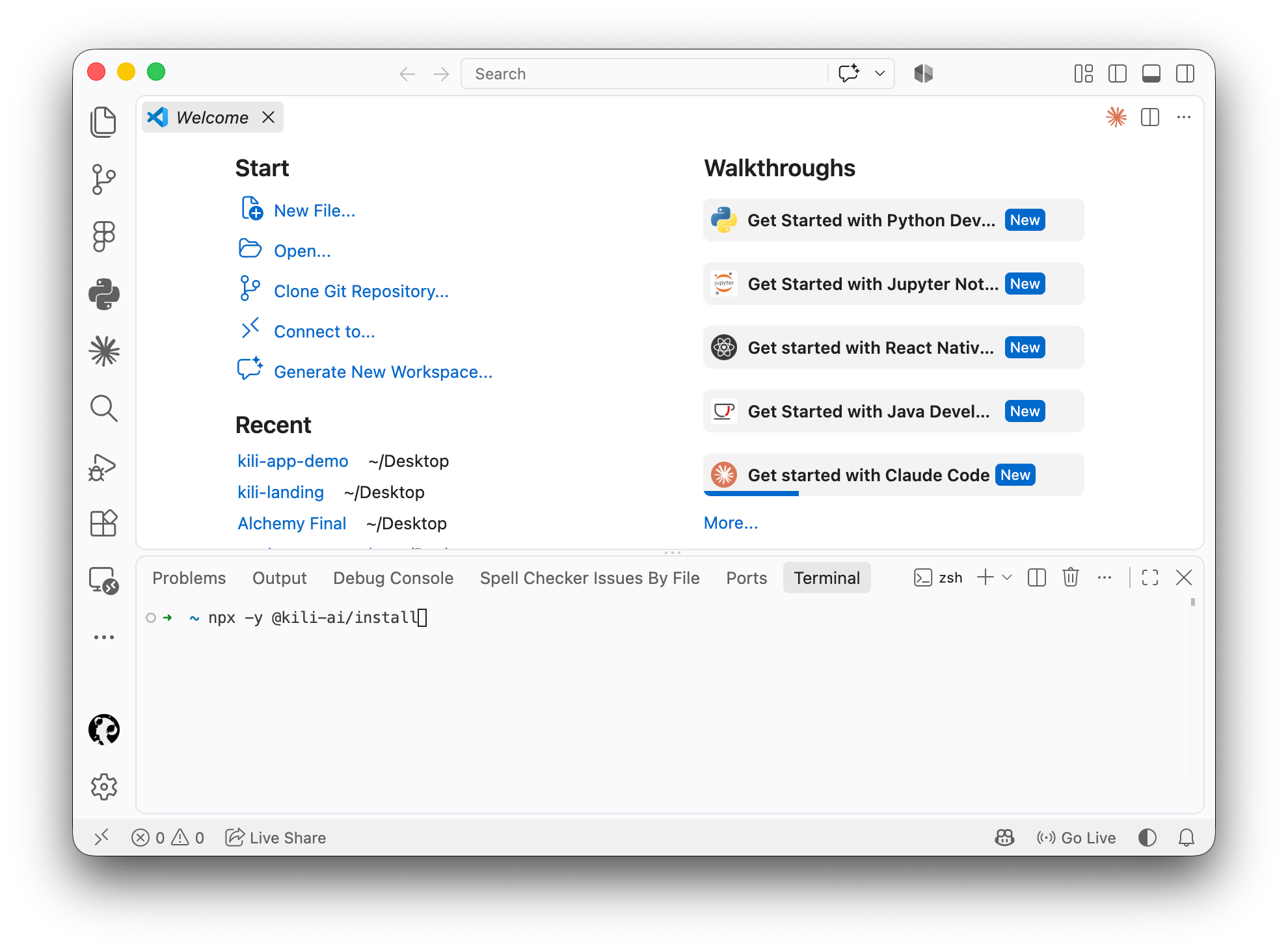
1
Run the Kili install script
Open the VS Code terminal or your system terminal and paste:Press Enter when prompted by the terminal.
2
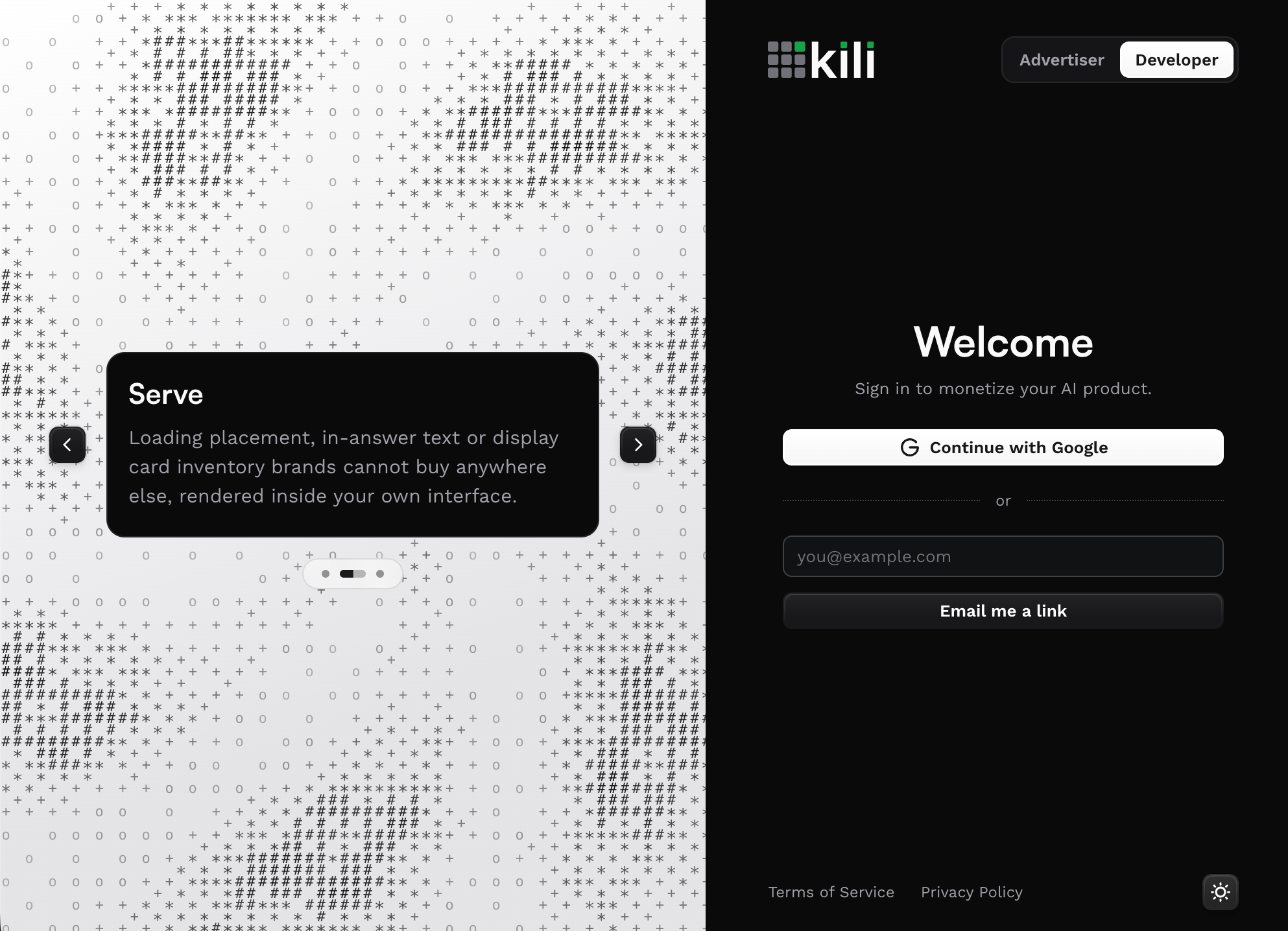
Sign in
3
Approve access
Accept any access requests VS Code or the Kili extension asks for.
4
Restart VS Code
If you set up through VS Code, fully quit and reopen it so the Kili extension loads correctly.
Use Kili
Once you’re set up, you can view ads and earn through either of these paths.Inside VS Code
Use the Claude Code extension inside VS Code.
In the Claude terminal
Run Claude Code directly from your system terminal.
Path 1: VS Code
1
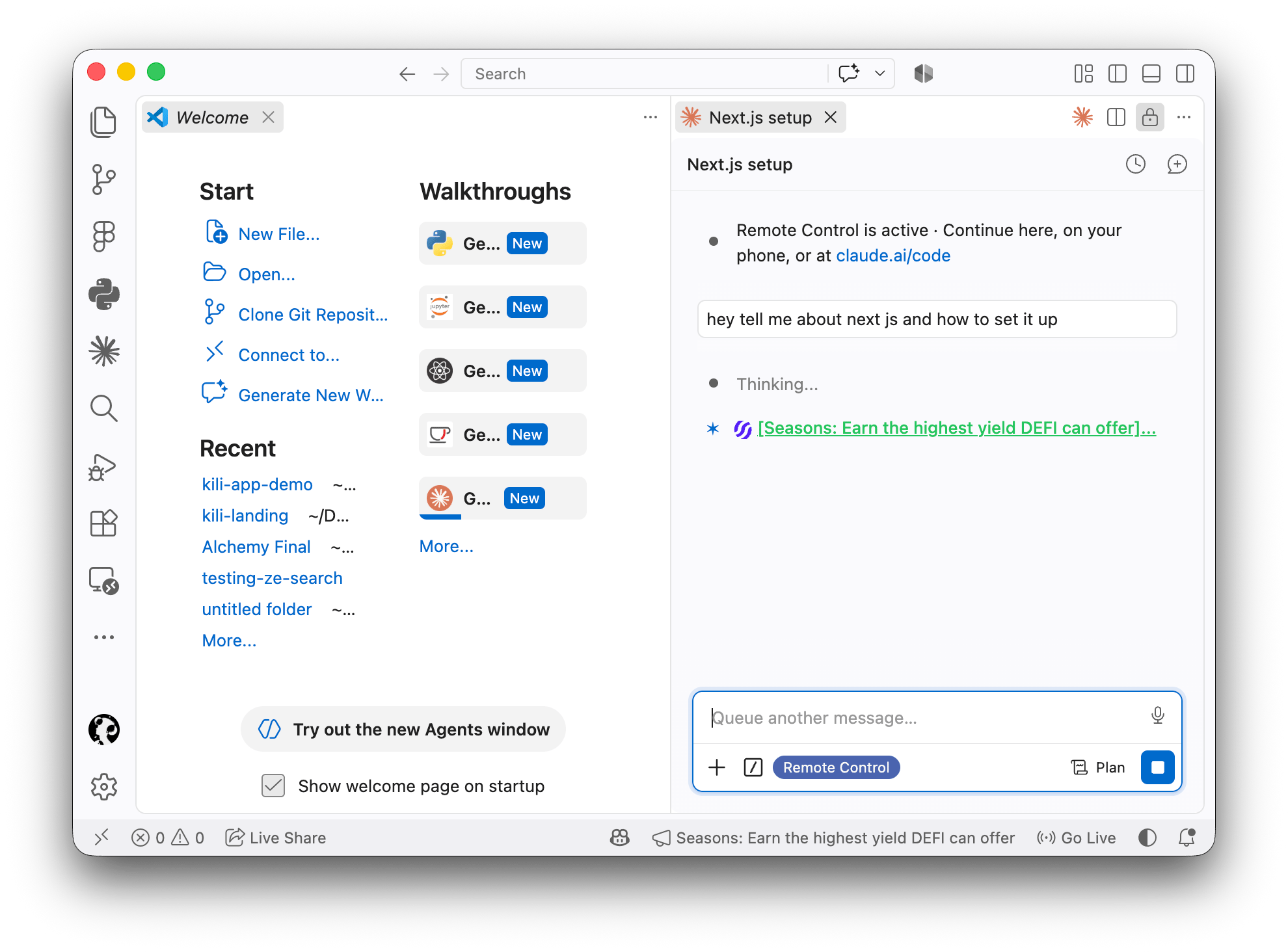
Open Claude Code in VS Code
Open the Claude Code extension in VS Code.
2
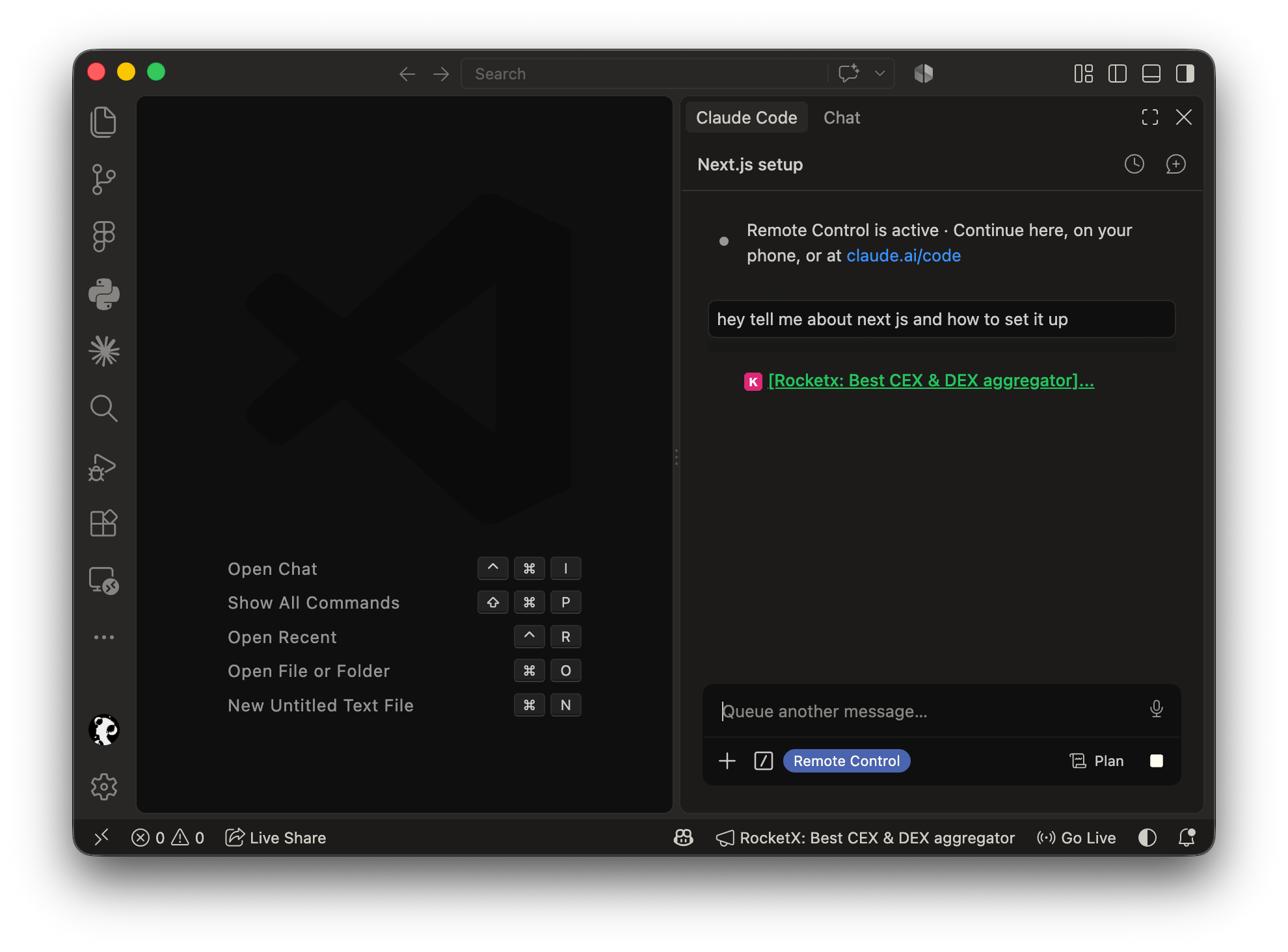
Ask Claude a question
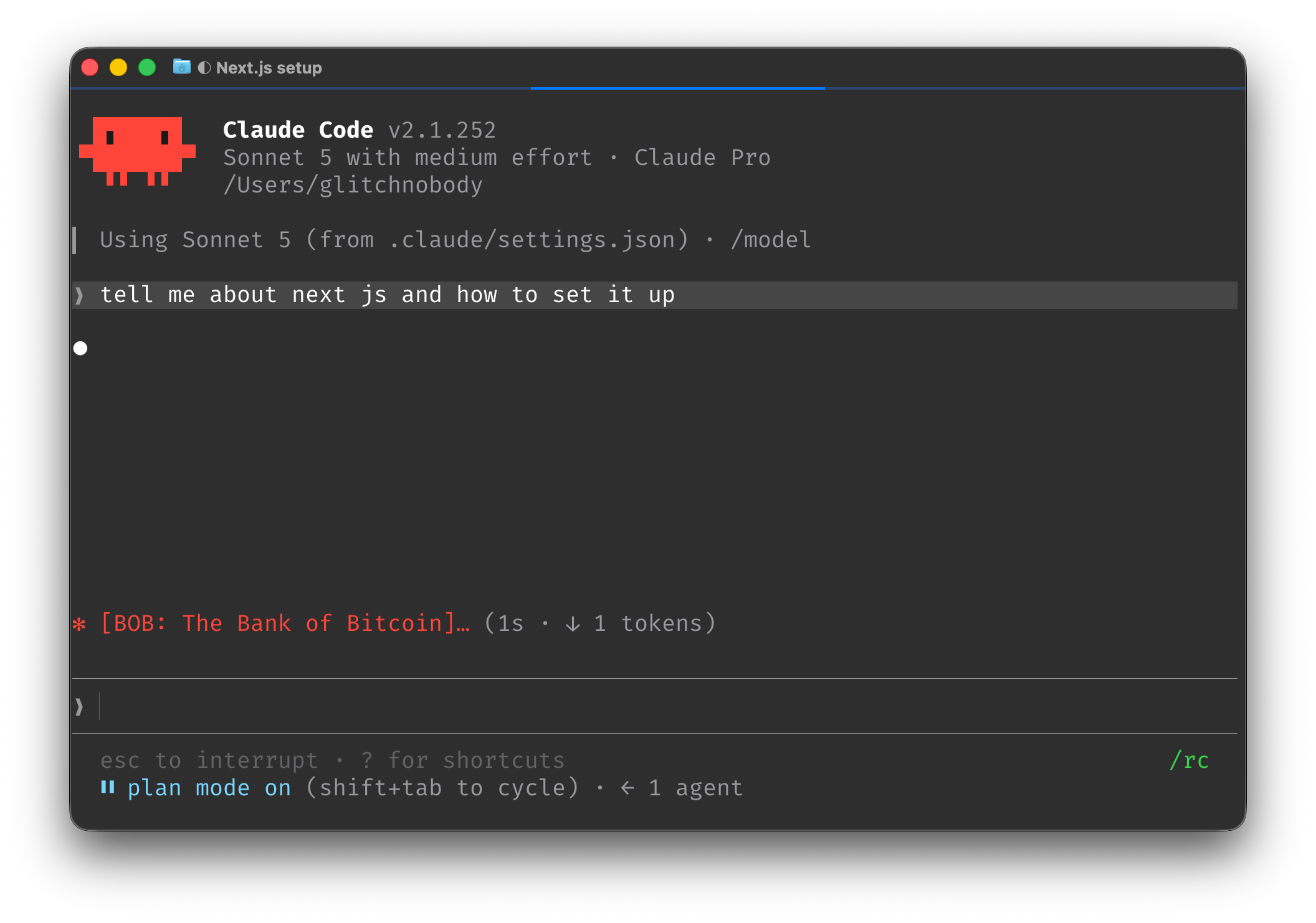
Ask Claude anything. A Kili ad appears where the loading indicator usually is.
3
Open ad links
Press Ctrl / Cmd + right-click on any URL in an ad to open its CTA link. Not every ad includes one.
Path 2: Claude terminal
You can also view ads by running Claude Code directly in your system terminal.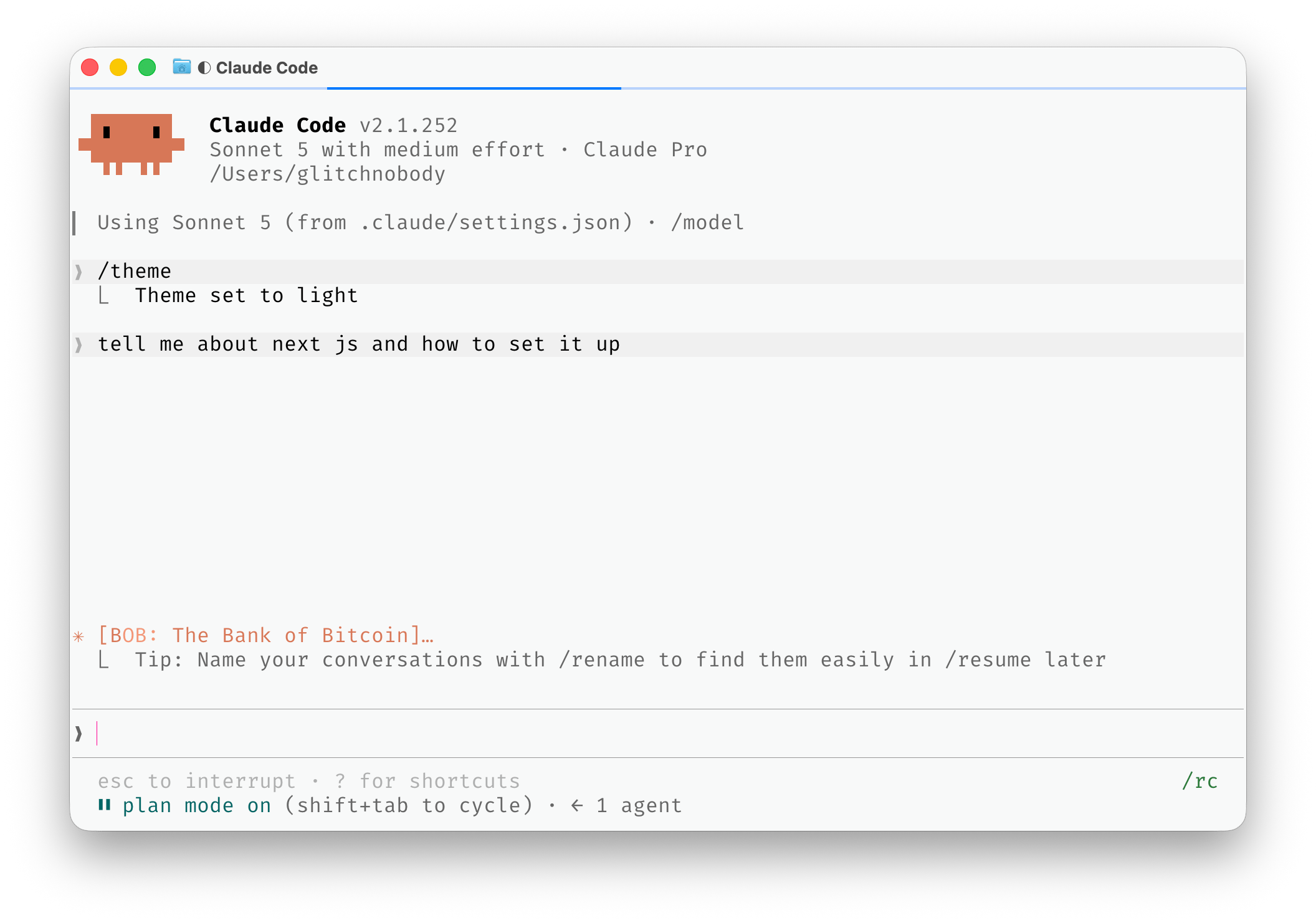
1
Open your terminal
Open Terminal on macOS or your terminal app on Windows.
2
Launch Claude Code
Type
claude to open Claude Code.3
Ask questions and view ads
Ask Claude questions and Kili ads will appear while it works.